Hp 6300 Instrukcja Użytkownika
Przeglądaj online lub pobierz Instrukcja Użytkownika dla Drukarki Hp 6300. HP 6300 User Manual Instrukcja obsługi
- Strona / 167
- Spis treści
- ROZWIĄZYWANIE PROBLEMÓW
- BOOKMARKI

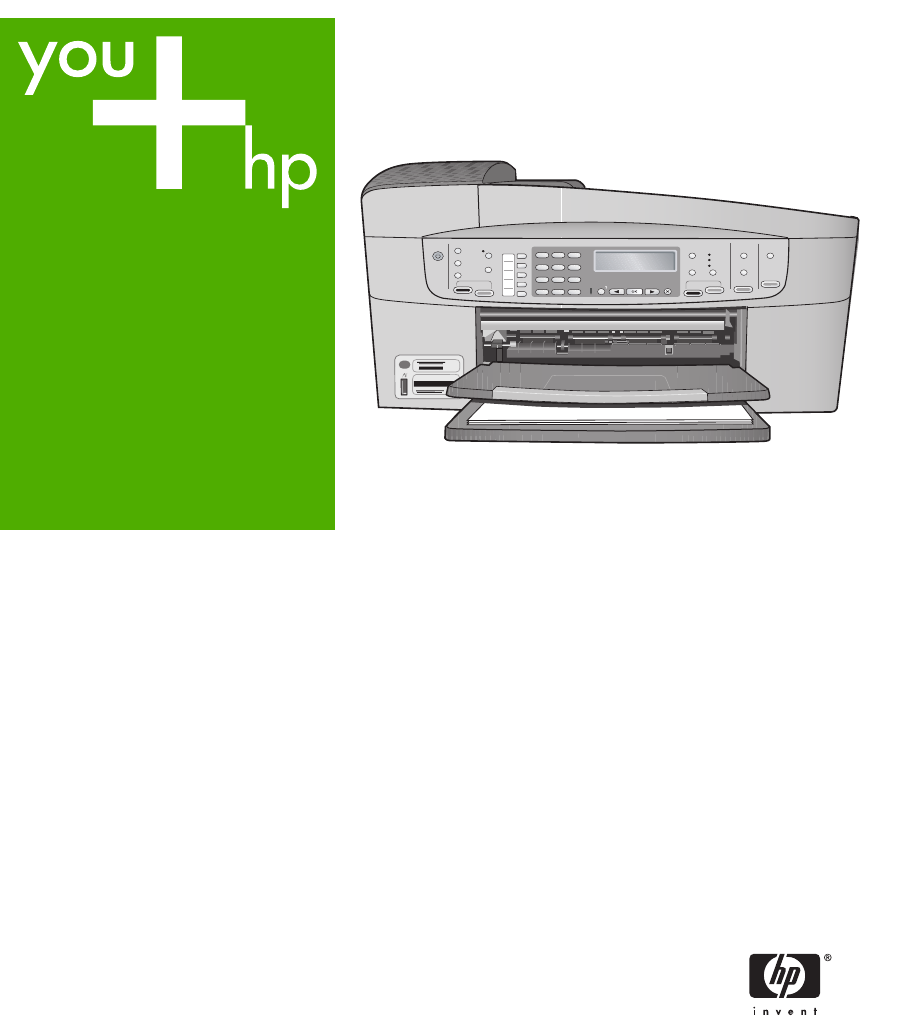
- User Guide 1
- Safety information 3
- Contents 4
- HP All-in-One overview 6
- Control panel features 7
- Menu overview 9
- Fax Menu 10
- Copy Menu 10
- Scan To menu 10
- Text and symbols 11
- Overview 12
- Use the software 13
- Chapter 1 15
- Find more information 16
- Use the onscreen Help 17
- Chapter 2 19
- Use the Help on a Mac 21
- Set your preferences 24
- Connection information 25
- Supported connection types 26
- Connect using a USB cable 26
- Connect using Ethernet 26
- Wireless 27
- Technology 27
- Finish setup 28
- Use a Bluetooth 29
- Use printer sharing 31
- Connect to a network 32
- Chapter 3 33
- Fax setup 36
- (continued) 41
- Test your fax setup 58
- Set the fax header 59
- Load originals and load paper 60
- Chapter 4 61
- Papers to avoid 62
- Load paper 63
- Load index cards 66
- Load envelopes 66
- Avoid paper jams 68
- Print from your computer 70
- Change the print settings 71
- Stop a print job 71
- Chapter 5 73
- Use the fax features 74
- Chapter 6 75
- Receive a fax 77
- Print reports 80
- Stop faxing 81
- Use the copy features 82
- Chapter 7 83
- Stop copying 84
- Scan an image 86
- Stop scanning 87
- Chapter 8 87
- Photos and videos 88
- Connect a digital camera 89
- Connect a storage device 89
- Chapter 9 91
- to backspace 93
- Clean the lid backing 96
- Print a self-test report 97
- Work with print cartridges 98
- Align the print cartridges 101
- Maintain the HP All-in-One 102
- Chapter 10 103
- HP All-in-One 104
- Troubleshooting information 106
- Setup troubleshooting 107
- Troubleshooting 108
- Chapter 11 109
- Operational troubleshooting 130
- Order supplies 136
- Order accessories 137
- Order other supplies 137
- Chapter 12 139
- HP warranty and support 140
- Warranty information 141
- Call elsewhere in the world 143
- Pack the HP All-in-One 147
- Chapter 13 149
- Technical information 150
- Print specifications 151
- Copy specifications 152
- Memory card specifications 152
- Fax specifications 153
- Scan specifications 153
- Physical specifications 153
- Power specifications 153
- Memory specifications 154
- Regulatory notices 155
- FCC statement 156
- Notice to users in Japan 158
- Geräuschemission 158
- Notice to users in Korea 159
- Chapter 14 161
Podsumowanie treści
HP Officejet 6300 All-in-One seriesUser Guide
1. How Do I2. Error Messages3. Print Cartridges4. Load Originals and LoadPaper5. General Troubleshooting6. Network Troubleshooting7. Use Fax Features8
1 Print cartridge slot for the tri-color print cartridge2 Print cartridge slot for the black and photo print cartridges4. Pull the print cartridge tow
7. Slide the new print cartridge forward into the empty slot. Then gently push on theupper part of the print cartridge forward until it clicks into th
panel or by using the software you installed with the HP All-in-One. Aligning the printcartridges ensures high-quality output.Note If you remove and r
Clean the print cartridge contacts Clean the print cartridge contacts only if you get repeated messages on the displayprompting you to check a print
1 Copper-colored contacts2 Ink nozzles (do not clean)8. Slide the print cartridge back into the slot. Push the print cartridge forward until itclicks
Chapter 10102HP Officejet 6300 All-in-One seriesMaintain the HP All-in-One
11Troubleshooting informationThis chapter contains troubleshooting information for the HP All-in-One. Specificinformation is provided for installation
Setup troubleshooting This section includes installation and configuration troubleshooting tips for some of themost common issues associated with hard
One to turn on. If you press the On button again during this time, you might turnthe device off.Warning If the HP All-in-One still does not turn on, i
For more information on attaching the control panel faceplate, see the SetupGuide that came with the HP All-in-One.The display shows the wrong languag
The Memory Device option only appears if you have a memory card plugged into oneof the slots or a storage device connected at the front USB port. This
country/region, and then click Contact HP for information on calling for technicalsupport.Cause Protective tape is covering the print cartridges.Solut
● Check that the HP All-in-One print queue is not paused (Windows) orstopped (Mac). If it is, choose the appropriate setting to resume printing. Formo
I received a message on the display about a paper jam or a blocked carriage Solution If either a paper jam or blocked carriage error message appea
When I insert the CD-ROM into my computer’s CD-ROM drive, nothing happensSolution If the installation does not run automatically, you can start it man
3. Click Retry to retry the plug and play setup. If this does not work, continue tothe next step.4. Verify that the USB cable is set up properly as fo
The Fax Setup Wizard (Windows) or Fax Setup Utility (Mac) does not startSolution You can manually start the Fax Setup Wizard (Windows) or FaxSetup Uti
5. If you are asked whether you would like to remove shared files, click No.Other programs that use these files might not work properly if the files a
To uninstall from a Windows computer, method 3Note Use this method if Uninstall is not available in the Windows Start menu.1. Insert the HP All-in-One
The Printer Not Found screen appears during installation Cause A firewall, anti-virus, or anti-spyware application is preventing the HP All-in-One fro
If you are having faxing problems, you can print a fax test report to check the status ofthe HP All-in-One. The test will fail if the HP All-in-One is
You can also enter symbols from the keypad when you dial a fax or phone number.When the HP All-in-One dials the number, it will interpret the symbol a
The "Fax Connected to Active Telephone Wall Jack" test failed Solution● Check the connection between the telephone wall jack and the HP Al
Back view of the HP All-in-One1 Telephone wall jack2 Use the phone cord supplied in the box with the HP All-in-One to connect to the"1-LINE"
1 Telephone wall jack2 Use the phone cord supplied in the box with the HP All-in-One to connect to the"1-LINE" portIf the supplied phone cor
● If you are using a phone splitter, this can cause faxing problems. (A splitter isa two-cord connector that plugs into a telephone wall jack.) Try re
adding them back one at a time and rerunning the test each time, untilyou identify which piece of equipment is causing the problem.– If the Fax Line C
be connected to the port labeled 1-LINE on the back of the HP All-in-Oneand the other end to your telephone wall jack, as shown below.1 Telephone wall
information, see Case C: Set up the HP All-in-One with a PBX phone systemor an ISDN line.● If the HP All-in-One shares the same phone line with a DSL
1 Telephone wall jack2 Use the phone cord supplied in the box with the HP All-in-One to connect to the"1-LINE" port3 Telephone● If you are s
● If you have an answering machine on the same phone line with the HP All-in-One, you might have one of the following problems:– Your answering machin
Distinctive Ring feature on the HP All-in-One is set to match. For moreinformation, see Change the answer ring pattern for distinctive ringing.The HP
AvailablesymbolsDescription Available when entering* Displays an asterisk symbol whenrequired for dialing.Fax header name, speed dialnames, speed dial
The phone cord that came with my HP All-in-One is not long enough Solution If the phone cord that came with the HP All-in-One is not long enough,you
Do not load curled or wrinkled paper, or paper with bent or torn edges, into the inputtray.If paper does become jammed in your device, follow these in
2. Gently pull the paper out of the rollers.Caution If the paper tears when you are removing it from the rollers,check the rollers and wheels for torn
separator pad after extensive use, or if you copy handwritten originals or originalsthat are heavy with ink.● If the automatic document feeder does no
4. Use the damp cloth to wipe any residue off the rollers or separator pad.Note If the residue does not come off using distilled water, try usingisopr
Chapter 11132HP Officejet 6300 All-in-One seriesTroubleshooting
12Order suppliesYou can order HP products, such as recommended types of paper and printcartridges, online from the HP website.● Order paper, or other
To find out the reorder number through the HP Photosmart Mac Software1. In the HP Photosmart Studio task bar, click Devices.The HP Device Manager wind
Country/region Number for orderingAsia Pacific (except for Japan) 65 272 5300Australia 1300 721 147Europe +49 180 5 290220 (Germany)+44 870 606 9081 (
Chapter 12136HP Officejet 6300 All-in-One seriesOrder supplies
HP Photosmart Studio window. Regardless, the entry point serves as the launchingpad for the software and services.To open the HP Photosmart Software o
13HP warranty and supportThis chapter provides warranty information as well as how to get support from the Internet,access your serial number and serv
Warranty informationA. Extent of limited warranty 1. Hewlett-Packard (HP) warrants to the end-user customer that the HP products specified above w
Get support and other information from the Internet To find support and warranty information, go to the HP website at www.hp.com/support. Ifprompted,
Note If the HP All-in-One is not turning on, you can view the serial number by lookingat the sticker on the rear side. The serial number is the 10-cha
03-3335-9800 1588-3003Luxembourg 900 40 006Luxemburg 900 40 007 (0,16 € / min)Malaysia 1800 88 8588Mexico (Mexico City) 55-5258-9922Mexico 01-
HP Quick Exchange Service (Japan) HP Quick Exchange Service0570-000511 :03-3335 -9800 : 9:00 5:00 10:00 5:00 1 1 3 : For instructions o
● Any paper loaded in the input tray● Remove any originals you might have loaded in the HP All-in-One● Remove the print cartridges before shipment● Re
4. Retain the control panel faceplate. Do not return the control panel faceplate with the HP All-in-One.Caution The replacement HP All-in-One might no
If you do not have the original packaging materials, please use other adequate packagingmaterials. Shipping damage caused by improper packaging and/or
Chapter 13146HP Officejet 6300 All-in-One seriesHP warranty and support
Chapter 112HP Officejet 6300 All-in-One seriesOverview
14Technical informationThe technical specifications and international regulatory information for the HP All-in-One areprovided in this section.System
Type SizeU.S. #9: 98 x 225 mm (3.9 x 8.9 inches)A2: 111 x 146 mm (4.4 x 5.8 inches)DL: 110 x 220 mm (4.3 x 8.7 inches)C6: 114 x 162 mm (4.5 x 6.4 inch
Mode Type Speed (ppm) on plainpaperSpeed (seconds) 4 x 6inch borderless photoMaximumdpiBlack and Color up to .4 as fast as 140Best Black and Color up
● Memory Stick Duo● Memory Stick Pro● Secure Digital● MultiMediaCard (MMC)● xD-Picture CardOther memory cards, including Memory Stick Magic Gate Duo,
● Input voltage: AC 100 to 240 VAC, 1A, 50-60 Hz, grounded● Output voltage: 32 Vdc 900 mA, 16Vdc 600 mAEnvironmental specifications ● Recommended op
Paper useThis product is suited for the use of recycled paper according to DIN 19309.PlasticsPlastic parts over 25 grams are marked according to inter
Notice to users of the U.S. telephone network: FCC requirements This equipment complies with FCC rules, Part 68. On this equipment is a label that c
interference in a residential installation. This equipment generates, uses, and can radiate radiofrequency energy, and, if not installed and used in a
Notice to users in Japan VCCI-2Notice to users in the European Economic Area This product is designed to be connected to the analog Switched Telecom
Notice to users in Korea Declaration of conformity (European Economic Area) The Declaration of Conformity in this document complies with ISO/IEC Gui
2Find more informationYou can access a variety of resources, both printed and onscreen, that provideinformation about setting up and using the HP All-
HP Officejet 6300 All-in-One series declaration of conformity User Guide157Technical information
Chapter 14158HP Officejet 6300 All-in-One seriesTechnical information
IndexSymbols/Numerics10 x 15 cm photo paperload 62specifications 1472-wire phone cord 121, 1274 x 6 inch photo paper, load 624-wire phone cord 121, 12
error reports, fax 78European Unionrecycling information 152Ffaxanswer call 74answer mode 54answer ring pattern 55answering machine, setup 48, 49auto
Nnetworkupgrade 33OOK button 5on button 4one-touch speed dial buttons 5orderaccessories 134paper 133print cartridges 133Setup Guide 134software 134Use
scan to button 5start scan button 5stop 84scan glassclean 91load original 58scan tomenu 7Secure Digital memory card 85securityBluetooth adapter 25netw
print selected 88select 87voice mailset up with fax 44, 52volume, adjust 22Wwall jack test, fax 117warranty 137wireless router 30XxD memory card 85Ind
164HP Officejet 6300 All-in-One series
provides information on how to view animated videos ofcommon tasks you can perform with your software and device.● The Get step-by-step instructions t
The way you access and use the onscreen Help varies slightly depending on whetheryou are viewing the Help on a Windows computer or a Mac. Guidelines f
The Contents tab provides a top-down view of the topics in the Help, similar tothe table of contents in a book. This is a useful way to find all the i
HP Officejet 6300 All-in-One seriesUser Guide
After entering your search criteria, click ListTopics to view all the Help topics that containthe words or phrases you entered. The resultsare listed
1 Show/Hide2 Back3 Forward4 Home5 Print6 OptionsThe Help toolbar also contains buttons for changing the way the onscreen Helpappears on your computer
1 Contents pane2 Display area3 Help toolbarContents paneThe HP Photosmart Mac Help opens in the Help Viewer. It is divided into two panes.When you fir
to view all the content in a particular topic. Sometimes important information isnot visible in the window without scrolling.● Topics often include li
3Finish setting up the HP All-in-OneAfter you have completed the steps in your Setup Guide, refer to this section to helpyou finish setting up the HP
Note In some countries/regions, the date and time stamp on the fax header isa legal requirement.If the HP All-in-One loses power for more than 72 hour
Supported connection typesDescription Recommendednumber ofconnectedcomputers for bestperformanceSupported softwarefeaturesSetup instructionsUSB connec
Connect using the HP bt450, Printer and PC Adapter with Bluetooth® WirelessTechnology The HP bt450, Printer and PC Adapter with Bluetooth® Wireless
The name you entered will appear on your Bluetooth device when youconnect to the HP All-in-One to print.3. Press OK to exit the Setup menu.Set Bluetoo
Set the HP All-in-One to be invisible to Bluetooth devicesYou can set the HP All-in-One to be either Visible to all Bluetooth devices (public) orNot v
© Copyright 2006 Hewlett-PackardDevelopment Company, L.P.The information contained herein issubject to change without notice.Reproduction, adaptation
is possible to have both the Microsoft Stack and the Widcomm Stack on yourcomputer, but use only one of them to connect the HP All-in-One.● Microsoft
computer on the Connection Type screen. Also, on the Connect YourDevice Now screen, select the check box next to If you are unable toconnect your devi
To enable printer sharing on a Mac1. On both the client and host computers, do the following:a. Click System Preferences in the Dock, or, from the App
What you need for a wired networkBefore you connect the HP All-in-One to a network, make sure you have all of therequired materials.❑A functional Ethe
2. Connect the Ethernet cable to the Ethernet port on the back of the HP All-in-One.3. Connect the other end of the Ethernet cable to an available por
3. If a dialog box pertaining to firewalls appears, respond as follows:– The Issues Stopping Installation screen means that a firewall or anti-spyware
5. From the HP Installer dialog, select your language and the HP All-in-One youwant to connect.6. Follow the onscreen instructions to complete all the
Wizard (Windows) or Fax Setup Utility (Mac) through the software youinstalled with the HP All-in-One. After you run the Fax Setup Wizard(Windows) or F
If you are unsure which kind of telephone system you have (serial or parallel), checkwith your telephone company.Choose the correct fax setup for your
Please continue answering questions.5. Do you have a computer dial-up modem on the same phone line as the HP All-in-One?❑Yes, I have a computer dial-u
Contents1 HP All-in-One overview ...3The HP All-in-One at a glance
Other equipment/services sharing yourfax lineRecommended faxsetup for parallel-typephone systemsRecommended faxsetup for serial-typephone systemsNone(
Other equipment/services sharing yourfax lineRecommended faxsetup for parallel-typephone systemsRecommended faxsetup for serial-typephone systemsVoice
Back view of the HP All-in-One1 Telephone wall jack2 Use the phone cord supplied in the box with the HP All-in-One to connect to the "1-LINE"
Back view of the HP All-in-One1 Telephone wall jack2 DSL filter and cord supplied by your DSL provider3 Use the phone cord supplied in the box with th
converter, try using the port designated for multiple purposes; it might belabeled "multi-combi" or something similar.● If you are using a P
Note If you do not use the supplied cord to connect from the telephonewall jack to the HP All-in-One, you might not be able to fax successfully.This s
Back view of the HP All-in-One1 Telephone wall jack2 Use the phone cord supplied in the box with the HP All-in-One to connect to the "1-LINE"
Case F: Shared voice/fax line with voice mail If you receive both voice calls and fax calls at the same phone number, and you alsosubscribe to a v
Since your computer dial-up modem shares the phone line with the HP All-in-One,you will not be able to use both your modem and the HP All-in-One simul
6. (Optional) Change the Rings to Answer setting to the lowest setting (two rings).7. Run a fax test.When the phone rings, the HP All-in-One will answ
Print a self-test report ...94Work with print cartridges ...
Back view of the HP All-in-One1 Telephone wall jack2 "IN" phone port on your computer3 "OUT" phone port on your computer4 Telephon
6. Now you need to decide how you want the HP All-in-One to answer calls,automatically or manually:– If you set up the HP All-in-One to answer calls a
To set up the HP All-in-One with a shared voice/fax line with answering machine1. Remove the white plug from the port labeled 2-EXT on the back of the
For example, you cannot use the HP All-in-One for faxing if you are using yourcomputer dial-up modem to send an e-mail or access the Internet.There ar
To set up the HP All-in-One on the same phone line as a computer with twophone ports1. Remove the white plug from the port labeled 2-EXT on the back o
tones, the HP All-in-One stops monitoring the line and your answering machine canrecord a voice message.Case K: Shared voice/fax line with computer di
Back view of the HP All-in-One1 Telephone wall jack2 "IN" phone port on your computer3 "OUT" phone port on your computer4 Telephon
6. Turn off the Auto Answer setting.7. Run a fax test.You must be available to respond in person to incoming fax calls, or the HP All-in-Onecannot rec
This selects Basic Fax Setup and then selects Rings to Answer.3.Enter the appropriate number of rings by using the keypad, or press or tochange the
3. Press Setup.4. Press 6, then press 6 again.This selects the Tools menu and then selects Run Fax Test.The HP All-in-One displays the status of the t
1HP All-in-One overviewYou can access many HP All-in-One functions directly, without turning on yourcomputer. You can quickly and easily accomplish ta
4Load originals and load paperYou can load many different types and sizes of paper in the HP All-in-One, includingletter or A4 paper, photo paper, tra
Tip For more help on loading originals in the automatic document feeder,refer to the diagram engraved in the document feeder tray.2. Slide the paper g
3. Close the lid.Choose papers for printing and copying You can use different types and sizes of paper in the HP All-in-One. Review thefollowing recom
● Envelopes with clasps or windows. They can get stuck in the rollers and causepaper jams.● Banner paper.Additional papers to avoid when copying● Enve
3. Tap a stack of paper on a flat surface to align the edges, and then check thepaper for the following:– Make sure it is free of rips, dust, wrinkles
7. Flip the tray extender up toward you.Note When you use legal-size paper, leave the tray extender closed.Load 10 x 15 cm (4 x 6 inch) photo paper
5. Replace the output tray.Load index cards You can load index cards into the input tray of the HP All-in-One to print notes,recipes, and other text.F
Tip For more help on loading envelopes, refer to the diagram engravedin the base of the input tray.4. Slide the paper-width guide inward against the s
HP Greeting Cards, HP Photo Greeting Cards, or HP Textured Greeting Cards(for printing only)➔Insert a small stack of HP greeting card paper into the i
Chapter 466HP Officejet 6300 All-in-One seriesLoad originals and load paper
Label Description7 Input tray8 Output tray9 Glass10 Lid backing11 Rear door12 Rear USB port13 Ethernet port14 Power connection15 1-LINE (fax) and 2-EX
5Print from your computer The HP All-in-One can be used with any software application that allows printing. Youcan print a range of projects, such as
Change the print settings You can customize the print settings of the HP All-in-One to handle nearly any printtask.Windows usersBefore you change pr
To stop a print job from the HP All-in-One➔Press Cancel on the control panel. If the print job does not stop, press Cancelagain.It can take a few mome
Chapter 570HP Officejet 6300 All-in-One seriesPrint
6Use the fax featuresYou can use the HP All-in-One to send and receive faxes, including color faxes. Youcan set up speed dial entries to send faxes qu
Note If you are sending a multiple-page fax, you must load the originalsin the document feeder tray. You cannot fax a multiple-page documentfrom the g
Note If a fax machine answers the call, you will hear fax tones from thereceiving fax machine. Proceed to the next step to transmit the fax.4. Once yo
3. Once you hear the dial tone, enter the number by using the keypad on the controlpanel.4. Follow any prompts that might occur.Tip If you are using a
To receive a fax manually1. Make sure the HP All-in-One is turned on and you have paper loaded in the inputtray.2. Remove any originals from the docum
On Error Only Causes the HP All-in-One to store faxes in memory only if thereis an error condition that prevents the HP All-in-One fromprinting the fa
Label Name and Description5Start Fax Black: Starts a black-and-white fax. 6Start Fax Color: Starts a color fax. 7One-touch speed dial buttons: Access
The faxes are printed in the reverse order they were received with the mostrecently received fax printed first, and so on.4. If you want to stop repri
On Fax Receive Prints a fax confirmation report for every fax you receive.Send &ReceivePrints a fax confirmation report for every fax you send and
7Use the copy featuresThe HP All-in-One enables you to produce high-quality color and black-and-whitecopies on a variety of paper types, including tra
– Paper Type– Lighter / Darker– Enhancements– Set New Defaults2.Press the until the appropriate setting appears.3. Do one of the following:– To chang
Tip If the output is not borderless set the paper type to Premium Photo,and then try making the copy again.Stop copying To stop copying➔Press Canc
Chapter 782HP Officejet 6300 All-in-One seriesCopy
8Use the scan features Scanning is the process of converting text and pictures into an electronic format foryour computer. You can scan almost
To scan to a computer1. Load your original print side down on the right front corner of the glass or printside up in the document feeder tray.2. Press
9Use the photo and video features The HP All-in-One can access your memory cards or storage devices so you canprint, store, manage, and share your ph
● Third slot from top: CompactFlash (I, II)● Bottom slot: Secure Digital, MultiMediaCard (MMC), Secure MultiMedia CardTo insert a memory card1. Turn t
Label Name and DescriptionJunk Fax Blocker: Presents the Junk Fax Blocker Set Up menu for managingunwanted fax calls. You are required to subscribe to
Note Digital cameras that are in storage mode can be attached to the frontUSB port. The HP All-in-One treats cameras in this mode as a normal storaged
Tip You can press and hold down or to quickly navigate through allphotos and videos.5. Press OK to select the photo or video currently shown on the
Note 1 You cannot print a proof sheet of photos on a camera in PictBridgemode. The camera must be in storage mode.Note 2 From the control panel on the
Note You can erase photo numbers by pressing to backspace.5.Press or until the photo number for the last photo appears, then press OK.6. Complete t
10Maintain the HP All-in-OneThe HP All-in-One requires little maintenance. Sometimes you might want to clean theglass and lid backing to remove surfac
To clean the glass strip inside the automatic document feeder1. Turn off the HP All-in-One, and unplug the power cord.Note Depending how long the HP A
5. Clean the glass strip with a soft cloth or sponge slightly moistened with anonabrasive glass cleaner.Caution Do not use abrasives, acetone, benzene
Clean the exterior Use a soft cloth or slightly moistened sponge to wipe dust, smudges, and stains offthe case. The interior of the HP All-in-One do
Work with print cartridges To ensure the best print quality from the HP All-in-One, you will need to perform somesimple maintenance procedures and, wh
Note When the ink level for the print cartridge is low, a message appears onthe display. You can also check the ink levels by using the software insta
Powiązane produkty i podręczniki dla Drukarki Hp 6300

 (2 strony)
(52 strony)
(95 strony)
(57 strony)
(272 strony)
(348 strony)
(226 strony)
(5 strony)
(232 strony)
(96 strony)
(39 strony)
(334 strony)
(109 strony)
(4 strony)
(306 strony)
(252 strony)
(184 strony)
(250 strony)
(302 strony)
(2 strony)
(52 strony)
(95 strony)
(57 strony)
(272 strony)
(348 strony)
(226 strony)
(5 strony)
(232 strony)
(96 strony)
(39 strony)
(334 strony)
(109 strony)
(4 strony)
(306 strony)
(252 strony)
(184 strony)
(250 strony)
(302 strony)
© 2020, manymanuals.pl. Wszelkie prawa zastrzeżone. | 0.036 s |
 Manymanuals.com
 Manymanuals.de
 Manymanuals.fr
 Manymanuals.it
 Manymanuals.pl
 Manymanuals.cz
 Manymanuals.es
 Manymanuals-pt.com
Komentarze do niniejszej Instrukcji